Codex is OpenAI's official agent that helps you write, review and ship code. It runs as a CLI, an IDE extension, a desktop app and in the cloud, works on several tasks in parallel, and reads and edits files, runs commands and checks the results on your machine.
Example: Codex connects to Codelux Gateway at codelux.io/v1/responses and uses anthropic / claude-sonnet-5. The same agent can switch between claude-sonnet-5, claude-opus-5-5, gpt-6-sol, DeepSeek-V41-Flash, kimi-k3, glm-5.3 and more.
How to use Codex with Codelux
About 10 minutes: install Codex CLI → create a key in Portal → import it with CC-Switch (or edit config.toml) → start Codex.
1. Install Codex CLI
Use the official standalone installer, npm, or Homebrew.
1Run the installer
Terminal
curl -fsSL https://chatgpt.com/codex/install.sh | sh
You can also download a platform archive from GitHub Releases (e.g. codex-aarch64-apple-darwin.tar.gz), rename the extracted file to codex and put it on your PATH.
2Verify the installation
Open a new terminal and run the command below; it should print a version number:
Terminal
codex --version
2. Set Codelux as the provider
Codex providers live in ~/.codex/config.toml. CC-Switch can write it for you, or you can add it by hand.
Pick a subscription plan or top up in Billing — any balance works for every agent.
Open API Keys in the left menu and click Create New Key. Give it a name you will recognise, such as the agent's name.
After it is created, copy the API key (starts with sk-) and the API base URL. The key is shown in full only once, so keep it somewhere safe.
4Install CC-Switch
CC-Switch is an open-source (MIT) desktop app that manages API providers for Claude Code, Codex, Gemini CLI, OpenCode and more. It writes the configuration files for you, so you don't have to edit them by hand. Requirements: Windows 10+, macOS 12+, or Linux x86_64/ARM64 with glibc 2.35+ and WebKitGTK 4.1 (e.g. Ubuntu 22.04+, Debian 12+).
Install with Homebrew (recommended):
Terminal
brew install --cask cc-switch
Or download CC-Switch-v{version}-macOS.dmg from Releases. It is a Universal build signed and notarized by Apple, so it runs on both Apple Silicon and Intel Macs.
Download CC-Switch-v{version}-Windows.msi (or the -Windows-Portable.zip portable build) from Releases and run it. On ARM Windows use the -Windows-arm64 files.
From Releases, download the .deb (Debian/Ubuntu), .rpm (Fedora etc.) or .AppImage for your architecture. For example on Ubuntu:
Terminal
sudo apt install ./CC-Switch-v*-Linux-x86_64.deb
On Arch Linux: paru -S cc-switch-bin.
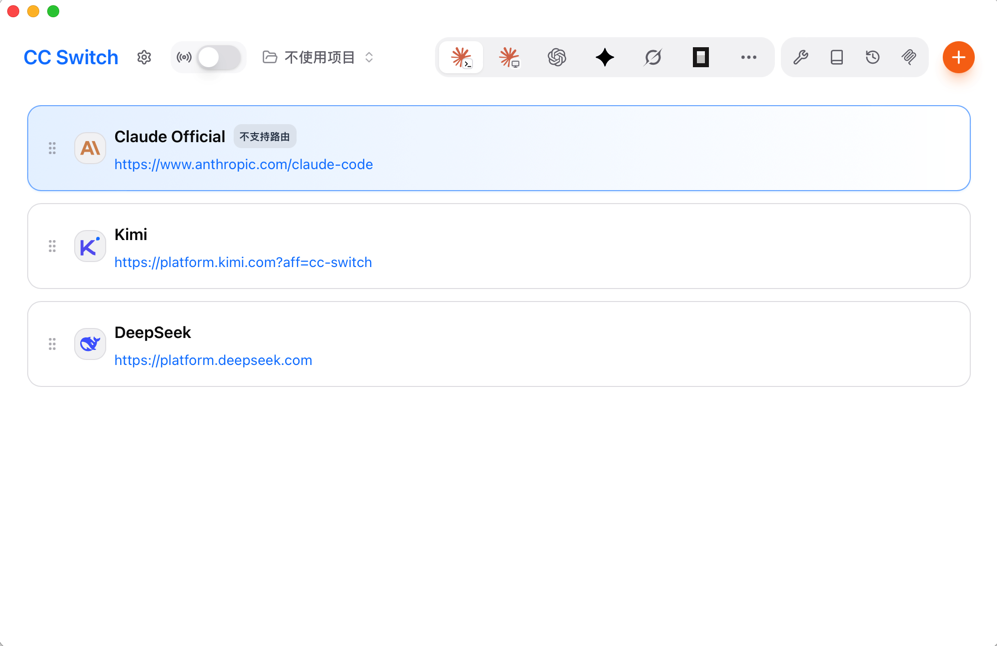
CC-Switch main window: pick the app at the top, then enable a provider; the orange + button adds a new one.
5Import Codelux into CC-Switch in one click
Keep CC-Switch running (it registers the ccswitch:// link handler on first launch).
In Portal, on the success page of the key you just created, find Import to desktop clients. It is only shown on desktop browsers.
On the CC-Switch card, set Target app to Codex, then click Import.
Your browser asks to open CC-Switch — allow it. CC-Switch shows a confirmation dialog with the provider name (Codelux), endpoint and key; confirm to add it.
In CC-Switch, switch to Codex at the top and make sure the Codelux provider is enabled.
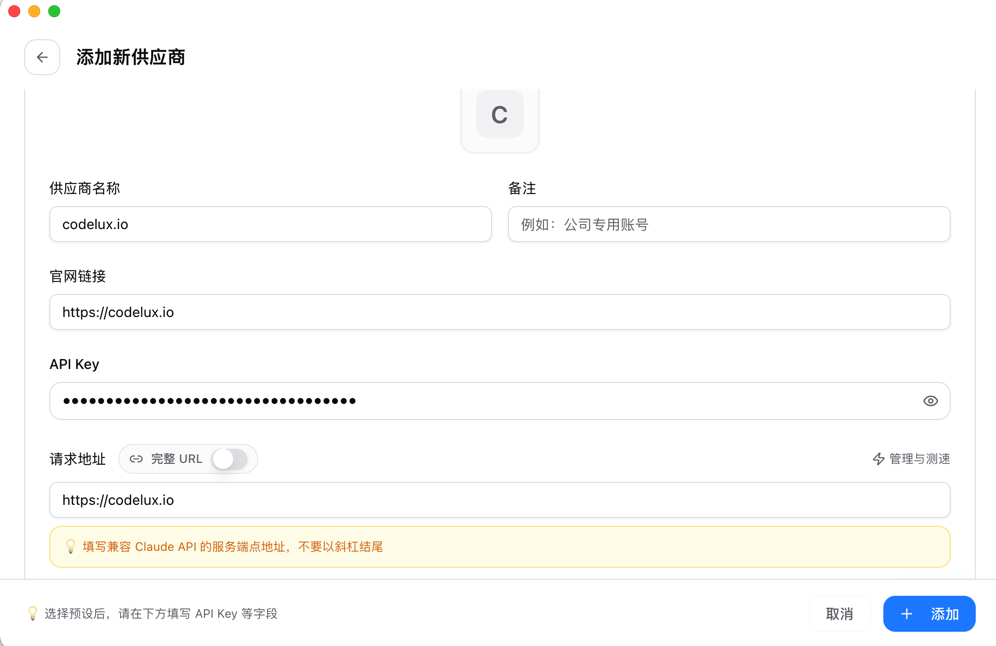
Prefer to add it by hand? In CC-Switch click the orange + → Custom, fill in Provider name (e.g. codelux.io), Websitehttps://codelux.io, your API Key and the Request URL (the Codelux API base URL, no trailing slash), then click Add.
Adding Codelux manually in CC-Switch. For Claude Code the request URL is the host only, without a trailing slash.
The Portal import sets the default model to gpt-5.5, and CC-Switch writes the Codelux provider (Responses protocol) to ~/.codex/config.toml. Close and reopen your terminal after switching providers for Codex to pick it up.
6(Optional) Edit config.toml by hand
Open (or create) the user config file and add:
OS
File
macOS / Linux
~/.codex/config.toml
Windows
%USERPROFILE%\.codex\config.toml
~/.codex/config.toml
model = "gpt-5.5"
model_provider = "codelux"

[model_providers.codelux]
name = "Codelux"
base_url = "https://codelux.io/v1"
env_key = "CODELUX_API_KEY"
wire_api = "responses"
model_provider points to the [model_providers.codelux] table below it.
base_url is the Codelux API base URL with/v1; Codex appends /responses.
env_key is the name of the environment variable that holds your key.
wire_api = "responses" makes Codex use the Responses API, which Codelux supports.
Then put the key in that environment variable (add it to your shell profile to keep it):
Start Codex in your project, confirm it uses the Codelux provider, then switch models as needed.
7Start and confirm the connection
Terminal
cd your-project
codex
You don't need Sign in with ChatGPT with a third-party provider. In the session, run /status to confirm the model and the Codelux provider, then send a test prompt.
8Switch models
Run /model in a session, or choose a model at launch:
Terminal
codex --model gpt-5.5
To change the default, edit model in config.toml. Model IDs are listed in Portal → AI Hub.
9Everyday commands
Command
What it does
/init
Create an AGENTS.md with project instructions
/model
Switch model and reasoning effort
/status
Show the current model, provider and token usage
codex exec "..."
Run a task non-interactively (scripts and CI)
See each request's model, tokens and charge in Portal → Logs.
FAQ
Codex still asks me to sign in with ChatGPT
Check that model_provider = "codelux" is at the top level of ~/.codex/config.toml (not inside a table) and that the environment variable named in env_key is set in the terminal you start Codex from.
I get a 401 or missing API key error
The variable in env_key is empty in this terminal, or the key was deleted. Run echo $CODELUX_API_KEY to check, then reopen the terminal.
I get a 404 error
base_url must end with /v1 (e.g. https://codelux.io/v1), not /v1/responses.
Can Codex use non-GPT models?
Yes. Set model or run /model with any model ID from Portal → AI Hub; Codelux handles the Responses API for it.

 Codex
Codex