Kimi Code

Kimi Code is Moonshot AI's official agent for desktop, the command line and IDEs, built around Kimi K3 with up to 1M tokens of context. It reads and writes code, runs commands, searches files and the web, and decides what to do next from the results.

Already have an account? Sign in

codelux.configExample
agent
kimi-code
endpoint
codelux.io/v1/chat/completions
route
anthropic / claude-sonnet-5
status
available
  • Kimi Code
Codelux Gateway
  • claude-sonnet-5
  • claude-opus-5-5
  • gpt-6-sol
  • DeepSeek-V41-Flash
  • kimi-k3
  • glm-5.3
Example: Kimi Code connects to Codelux Gateway at codelux.io/v1/chat/completions and uses anthropic / claude-sonnet-5. The same agent can switch between claude-sonnet-5, claude-opus-5-5, gpt-6-sol, DeepSeek-V41-Flash, kimi-k3, glm-5.3 and more.

How to use Kimi Code with Codelux

About 10 minutes: install Kimi Code CLI → create a key in Portal → add the Codelux provider and models to config.toml → start and switch models.

1. Install Kimi Code CLI

The install script doesn't need Node.js; the npm route needs Node.js 22.19.0+. A true-colour terminal such as Kitty or Ghostty is recommended.

Run the installer

Terminal
curl -fsSL https://code.kimi.com/kimi-code/install.sh | bash

Verify the installation

Open a new terminal and run:

Terminal
kimi --version

Upgrade later with kimi upgrade.

2. Set Codelux as the provider

/login only supports Kimi's own accounts. To use Codelux, edit ~/.kimi-code/config.toml or add it interactively with /provider.

Create a Codelux account and API key

  1. Go to Codelux Portal and create an account (existing users sign in).
  2. Pick a subscription plan or top up in Billing — any balance works for every agent.
  3. Open API Keys in the left menu and click Create New Key. Give it a name you will recognise, such as the agent's name.
  4. After it is created, copy the API key (starts with sk-) and the API base URL. The key is shown in full only once, so keep it somewhere safe.

Add the provider and models to config.toml

The config file is created the first time you run kimi. Open it and add:

OSFile
macOS / Linux~/.kimi-code/config.toml
Windows%USERPROFILE%\.kimi-code\config.toml
~/.kimi-code/config.toml
default_model = "kimi-k3"

[providers.codelux]
type = "openai"
base_url = "https://codelux.io/v1"
api_key_env = "CODELUX_API_KEY"

[models."kimi-k3"]
provider = "codelux"
model = "kimi-k3"
max_context_size = 200000

[models."claude-sonnet-5"]
provider = "codelux"
model = "claude-sonnet-5"
max_context_size = 200000

[models."glm-5.2"]
provider = "codelux"
model = "glm-5.2"
max_context_size = 128000
  • [providers.codelux] with type = "openai" uses the Chat Completions API; base_url is the Codelux API base URL with /v1.
  • api_key_env names the environment variable holding your key. Kimi Code does not read shell variables unless you name them here.
  • Each [models."<alias>"] entry needs provider, model (the model ID in Portal → AI Hub) and max_context_size. Quote aliases that contain a dot.
  • default_model must be one of the aliases you defined.

Then set the environment variable:

Terminal
echo 'export CODELUX_API_KEY=sk-your-codelux-key' >> ~/.zshrc
source ~/.zshrc

(Optional) Add it interactively with /provider

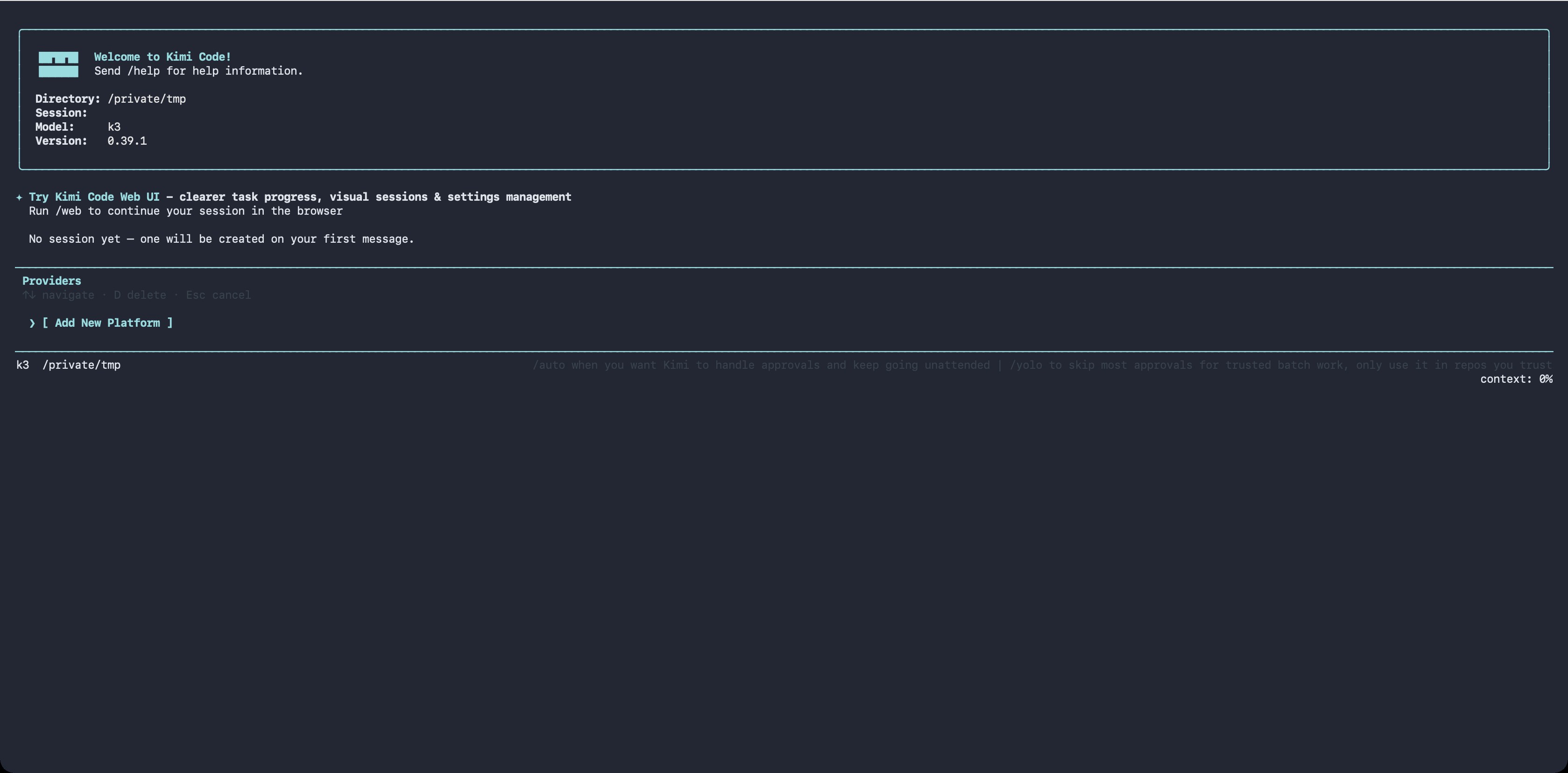
Prefer not to edit TOML? Start kimi, run /provider, choose Add New Platform and fill in the provider type (OpenAI-compatible), API base URL and key.

Kimi Code's /provider manager showing Add New Platform
Kimi Code's /provider manager. · Kimi Code docs (MIT)

3. Start using Kimi Code

Start Kimi Code in your project, confirm the model comes from Codelux, then switch as needed.

Start and confirm

Terminal
cd your-project
kimi

The Model line in the welcome box should show your default_model. Run /status for the version, model and working directory. After editing config.toml, run /reload to apply it without restarting.

Switch models

Run /model and choose from the models defined in config.toml. Add more [models."<alias>"] entries to get more choices.

Everyday commands

ActionWhat it does
/initCreate AGENTS.md for the project
Shift + TabToggle Plan mode
kimi -p "..."Run a single instruction
kimi -cResume the previous session
/compactCompress the conversation to free context

See each request's model, tokens and charge in Portal → Logs.

FAQ

Kimi Code fails to start with a credential error

The variable named in api_key_env is empty in this terminal. Set it (or use api_key) and reopen the terminal.

`default_model` errors

default_model must match an alias defined under [models], not a raw model ID that isn't configured.

Requests fail with 404

For type = "openai", base_url must end with /v1.

Can I use CC-Switch for Kimi Code?

CC-Switch doesn't manage Kimi Code at the moment; configure it in config.toml or with /provider.

Official references