WorkBuddy is Tencent's desktop AI agent workspace for office work, coding and design. Describe a task in one sentence and it breaks it down, plans and delivers a result you can check, with parallel agents, skill packs and MCP extensions.
Example: Tencent WorkBuddy connects to Codelux Gateway at codelux.io/v1/chat/completions and uses anthropic / claude-sonnet-5. The same agent can switch between claude-sonnet-5, claude-opus-5-5, gpt-6-sol, DeepSeek-V41-Flash, kimi-k3, glm-5.3 and more.
How to use Tencent WorkBuddy with Codelux
About 5 minutes: install WorkBuddy → create a key in Portal → add a custom model in Settings → Models → choose it in a conversation.
1. Download and install WorkBuddy
WorkBuddy has desktop apps for Windows and macOS.
1Download the installer
Open the WorkBuddy website and download the installer for your system.
Run the installer and follow the prompts (the official docs have separate Windows and Mac installation guides).
Launch WorkBuddy and sign in with your account.
2. Add Codelux as a custom model
WorkBuddy custom models only support the OpenAI-compatible protocol, which Codelux provides.
Pick a subscription plan or top up in Billing — any balance works for every agent.
Open API Keys in the left menu and click Create New Key. Give it a name you will recognise, such as the agent's name.
After it is created, copy the API key (starts with sk-) and the API base URL. The key is shown in full only once, so keep it somewhere safe.
3Add a custom model in Settings
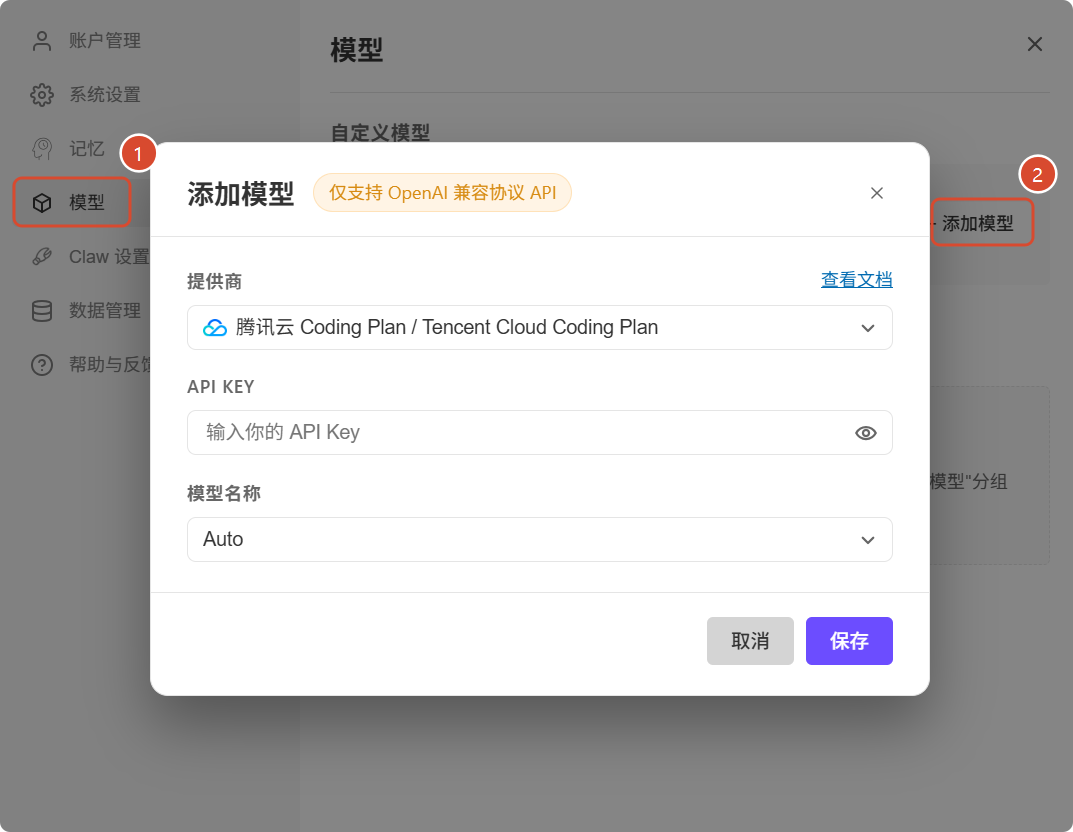
Open Settings from the account menu and choose Models.
Under Custom models, click Add model.
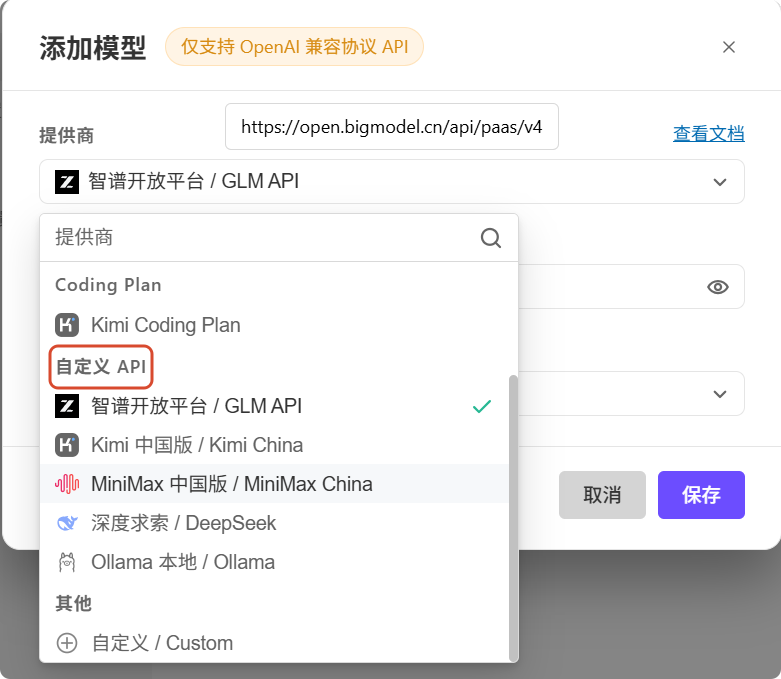
Open the Provider list, scroll to the bottom and choose Other → Custom.
URL: https://codelux.io/v1. With the default protocol, WorkBuddy checks and completes the path to /chat/completions.
API Key: paste your Codelux key.
Model name: a model ID from Portal → AI Hub, e.g. glm-5.2 or claude-sonnet-5.
Click Save. Repeat for each model you want to use.
Settings → Models → Add model. · WorkBuddy docsChoose Custom at the bottom of the provider list. · WorkBuddy docs
4(Optional) Edit models.json
Settings are saved locally (including the API key; nothing is uploaded). To add many models at once, edit ~/.workbuddy/models.json directly; apiKey and url accept ${VAR_NAME} environment variable references:
Choose a Codelux model in a conversation and give it a task.
5Choose the model and give a task
Start a conversation, open the model picker, choose your model from the Custom models group, and describe a task in one sentence, e.g. “turn this week's meeting notes into a weekly report”.
The model picker links straight to the settings page to edit custom models. Usage and charges for each request are in Portal → Logs.
FAQ
Which protocol does WorkBuddy use?
Custom models only support the OpenAI-compatible Chat Completions API. Codelux exposes Claude, GLM, DeepSeek and other models through it.
Requests fail after adding the model
Check the key and model ID first. If they are correct, turn on Custom protocol and use the full URL https://codelux.io/v1/chat/completions.
Where is my API key stored?
Locally in models.json on your computer; WorkBuddy doesn't upload it.

 Tencent WorkBuddy